Interactive Panels are a new kind of ClickNotes panel. Tap through a structured findings checklist and watch your results calculate live - no separate scoring, no separate spreadsheet. Just your notes, clicked straight in.
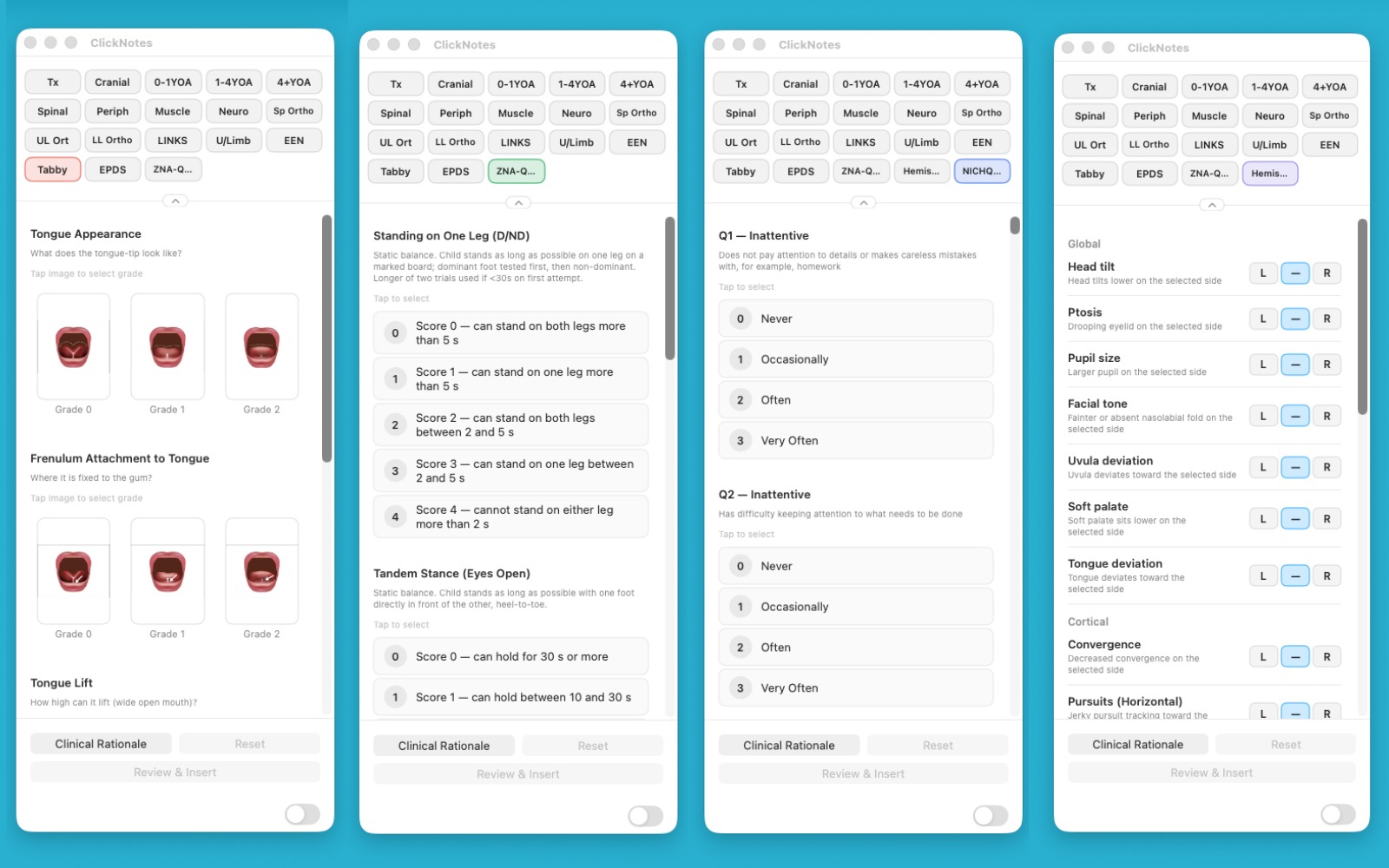
Standard ClickNotes panels insert text. Interactive Panels also hold structured findings and turn them into a result while you're still in the exam.
Select a side or a result for each finding as you go — no separate scoring sheet on the side.
Category totals and summary bars update the moment you enter a finding — the math happens for you.
Add, edit, or remove findings to match how you actually assess — your edits persist with the panel.
A compact review sheet summarizes everything before it goes into the note — check it, then insert.
Here's the flow using theTABBY tool for tongue-tie in breastfed babies, our first Interactive Panel, as an example.
Each question gets a simple graded picture selection you can assess. Easy to view, and you can change the image size or orientation if you needed to.
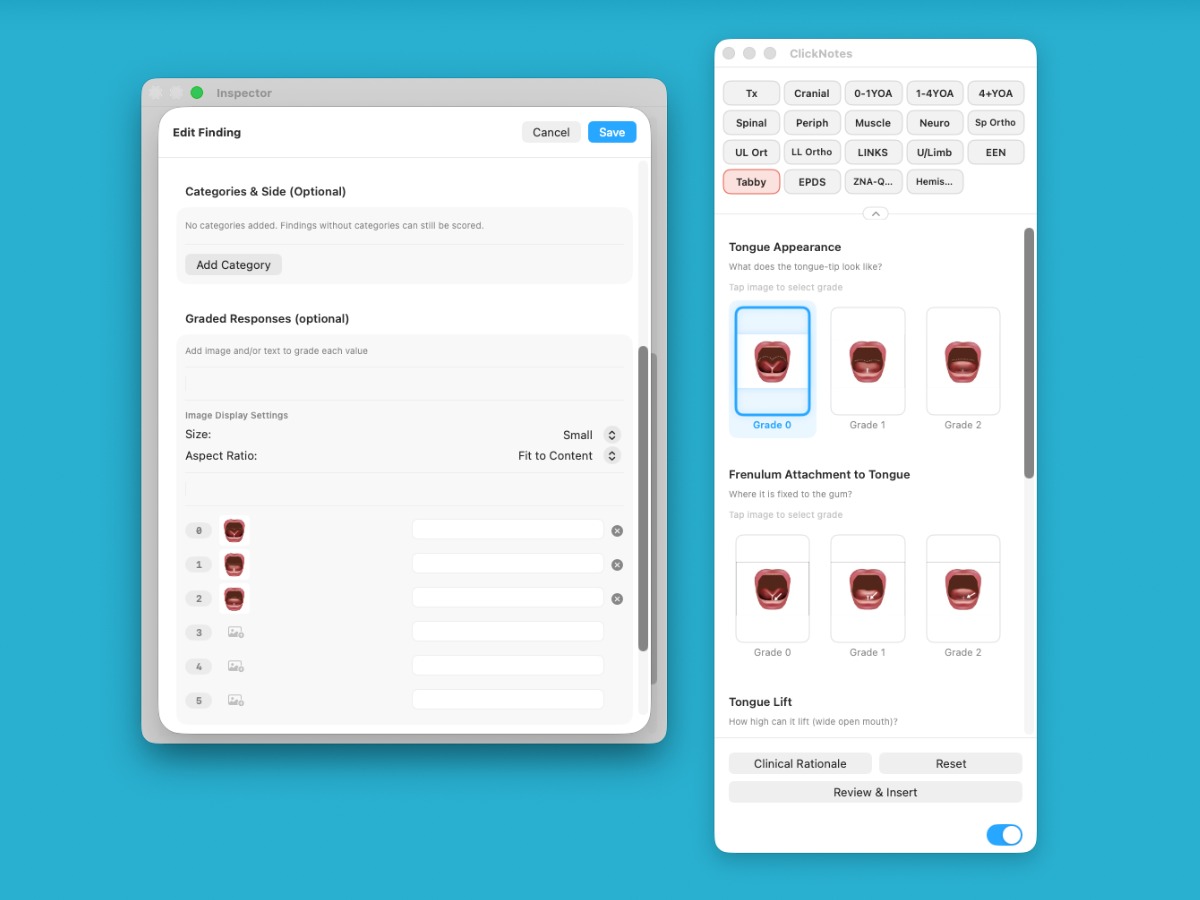
As you enter findings, the score is automatically added — a running visual summary, that you can easily add into your patient notes at the click of a button.
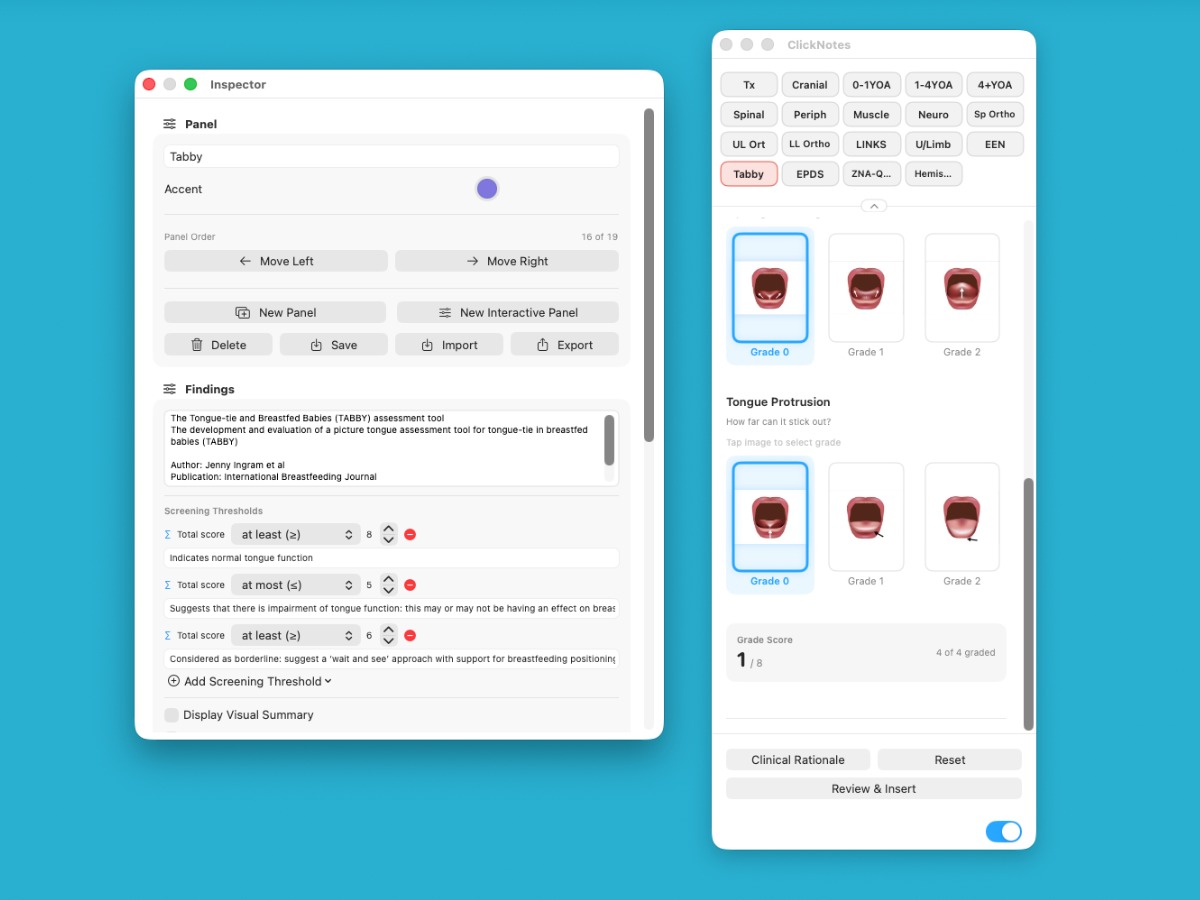
A compact summary lays out everything you entered. Confirm it looks right, then insert straight into your note — just like any other ClickNotes panel. You can even add threshold values that trigger specific responses, or add additional detail as a part of clinical rationale or just a simple suffix to your questions.
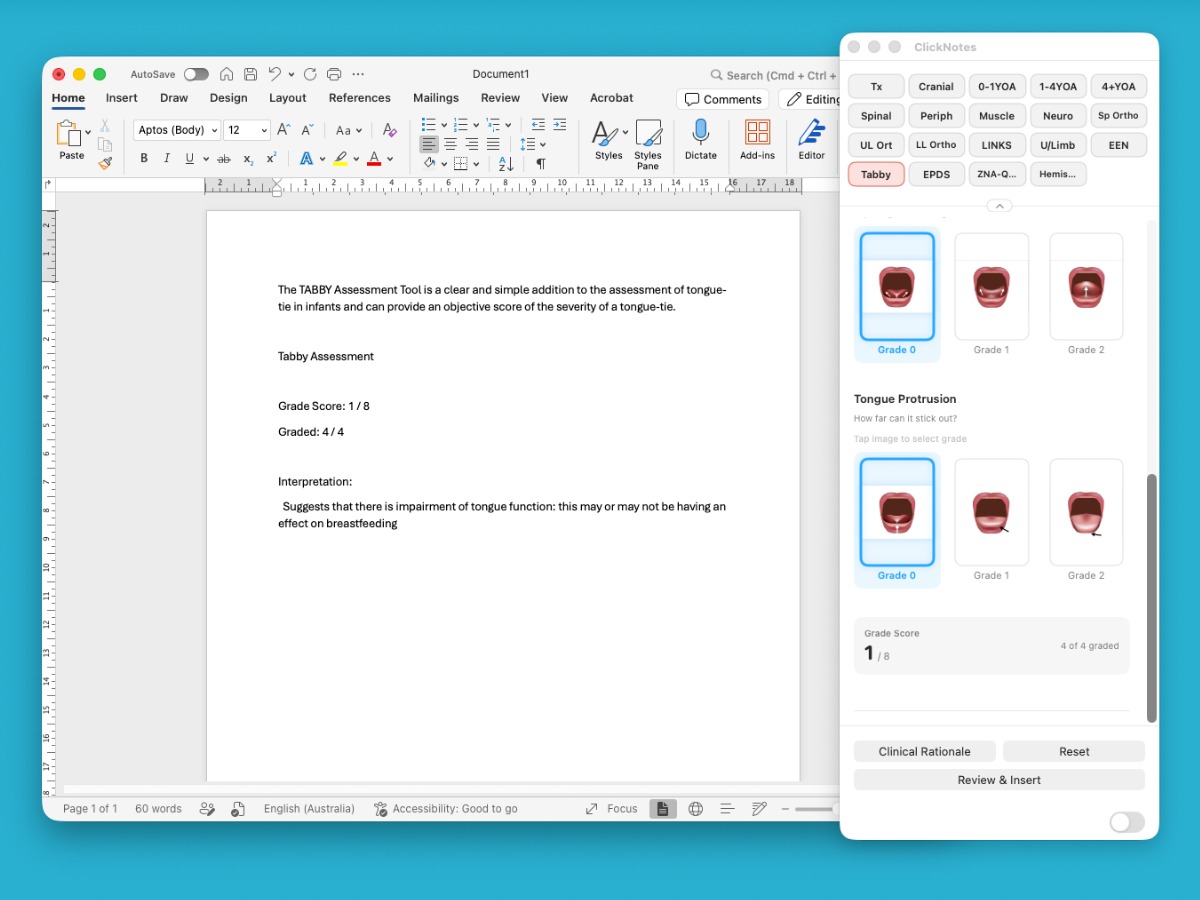
Interactive Panels are free and install like any other panel — click and drag directly onto your navigation section. You can then easily toggle on or off available interactive panels to keep your navigation area clean and uncluttered.
A ClickNotes Interactive Panel of the TABBY tool for tongue-tie in breastfed babies
View in Panel Library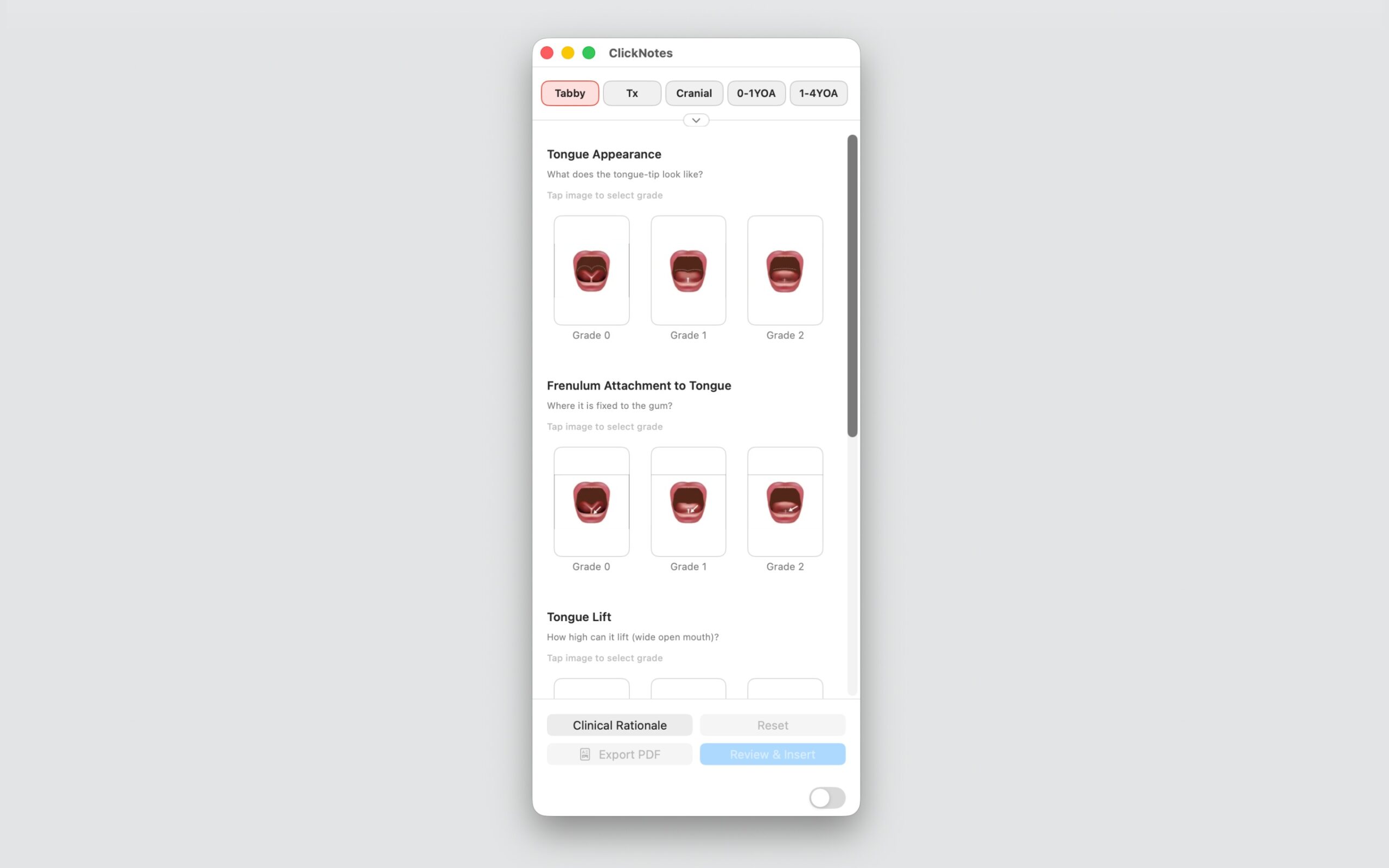
Interactive Panels are included with ClickNotes 1.4+ on macOS, Windows, and iOS, and 1.1+ on Android — no separate purchase.
macOS · Windows · iPhone · iPad · Android · No cloud · Cancel anytime