The ClickNotes keyboard puts every clinical panel one tap away, in any app that accepts text. No switching apps, no copy-paste; just your buttons, panels, and settings that stay in sync automatically with the main app.
The ClickNotes keyboard reads from the same panel library as the main app — so what you build once works everywhere you type.
Every panel button is available directly from the keyboard and useable in any app that accepts text input. It's just like a keyboard.
Panels, buttons, and settings sync automatically with the main app - no restart required.
Your panel canvas splits across evenly across two columns so everything fits without scrolling. It will even slightly move your buttons to ensure a nice, clean fit.
No internet connection needed; your panels work in any text field, in any app, any time.
Adding the ClickNotes keyboard takes less than a minute - here's the full flow.
Open iOS Settings → General → Keyboard → Keyboards, tap Add New Keyboard… and then select ClickNotes.
Tap ClickNotes in the keyboard list and enable Allow Full Access. This is required so the keyboard can read your panels and settings from the main app.
From any text field, tap and hold or tap the globe icon (🌐) on your standard keyboard to switch to ClickNotes.
Your panel list and buttons appear immediately - just tap to insert your pre-defined text straight into whatever you're writing.
The keyboard is split into three columns, with your panel canvas shown top half on the left and bottom half on the right.
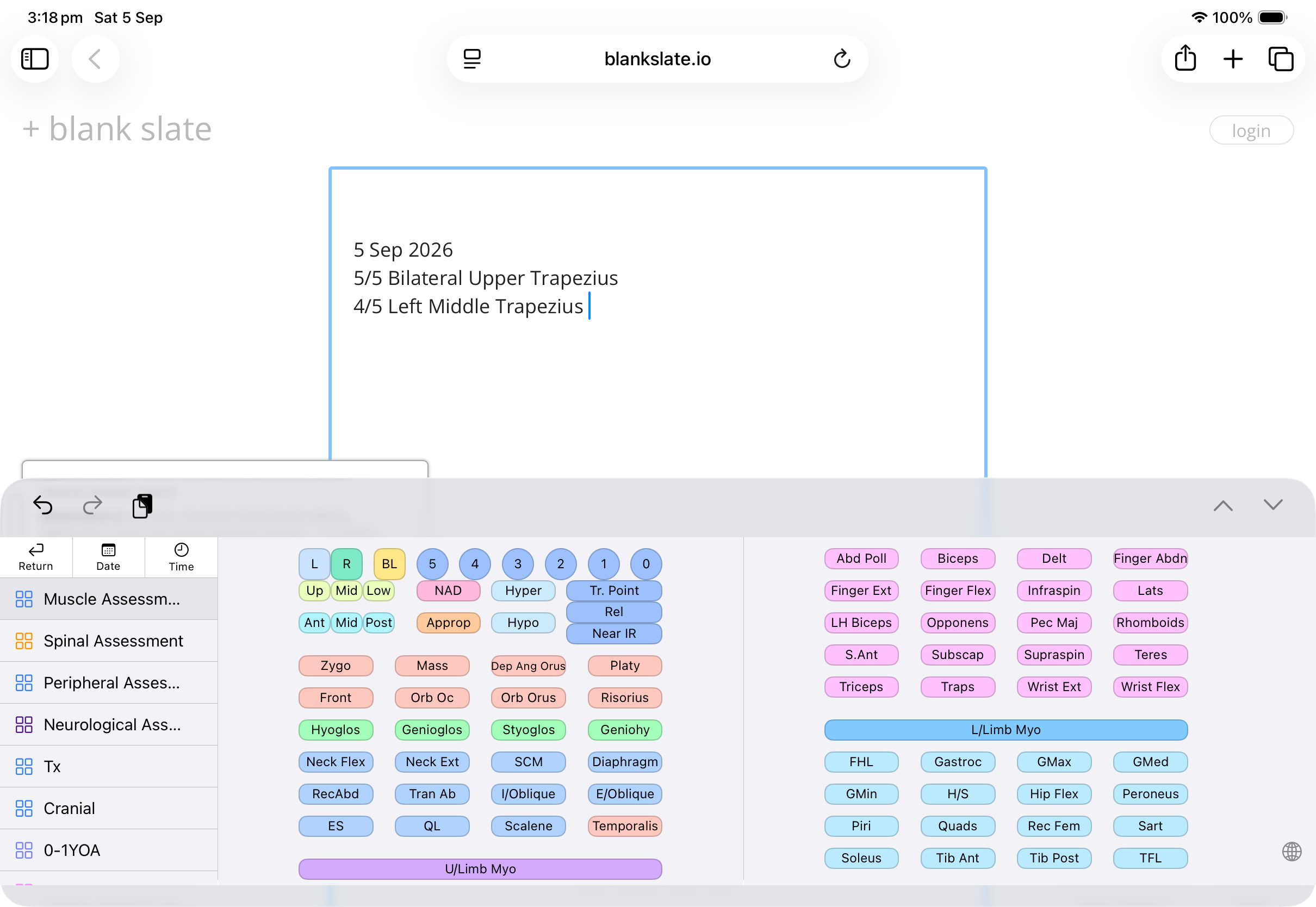
All settings are shared in real time between the main app and the keyboard — no restart required.
| Setting | Where to set it | Effect in keyboard |
|---|---|---|
| Panel content | Main app (add, edit, reorder panels) | Keyboard panel list and buttons update immediately on next open |
| Vibrant Colours | Settings → Appearance | Toggles between muted (default) and full-saturation button colours |
| Quick Actions | Main app → Quick Actions | Up to 3 shortcuts appear at the top of the panel list (e.g. Undo, Clear, custom text) |
Interactive Panels (.iclk files) are shown in the panel list but can't be used from the keyboard at this time — a prompt will direct you to open the main app to use them.
The ClickNotes keyboard is included with the app — no separate purchase, no internet connection required.
iPhone · iPad · No cloud · Works offline