Pricing Support Panel Library How To Use Subscribe Now
Getting Started Main Layout Edit Mode Daily Use Panels Backup & Sharing Troubleshooting Panel Builder

Select your platform:

Getting Started

ClickNotes for Windows

Installation

  1. Download ClickNotes from the download page.
  2. Open the downloaded .dmg file.
  3. Drag ClickNotes.app into your Applications folder.
  4. Open ClickNotes from Launchpad or Applications.

Granting Accessibility Permission

On first launch, macOS will prompt you to grant Accessibility permissions so ClickNotes can type text into other apps. This is required for ClickNotes to function.

  1. Click Open System Settings when prompted.
  2. Navigate to Privacy & Security → Accessibility.
  3. Toggle ClickNotes to ON.
  4. You may need to restart ClickNotes after granting permission.
  1. Download ClickNotes from the download page.
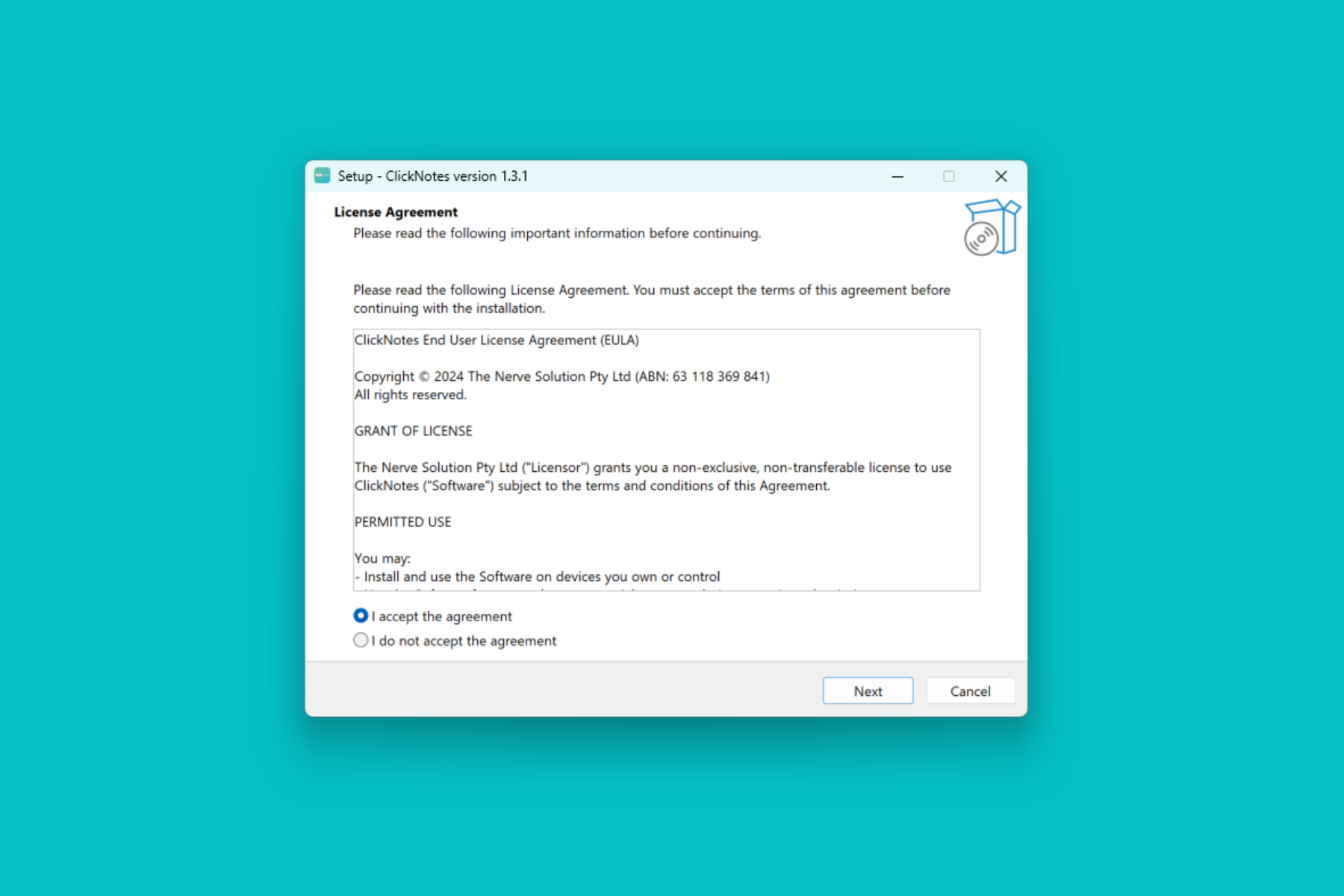
  2. Run the ClickNotes installer.
  3. Follow the installation wizard prompts.
  4. Launch ClickNotes from the Start Menu or Desktop shortcut.

Windows Permissions

ClickNotes on Windows doesn’t require special accessibility permissions. It works immediately after installation.

If Windows Defender SmartScreen appears, click More infoRun anyway. This is normal for new applications.

Windows can be a little sensitive with new developers and apps – if you get stuck you can read more in our Windows Installation Helper guide.

Main Layout

Learn the key areas of the ClickNotes window.
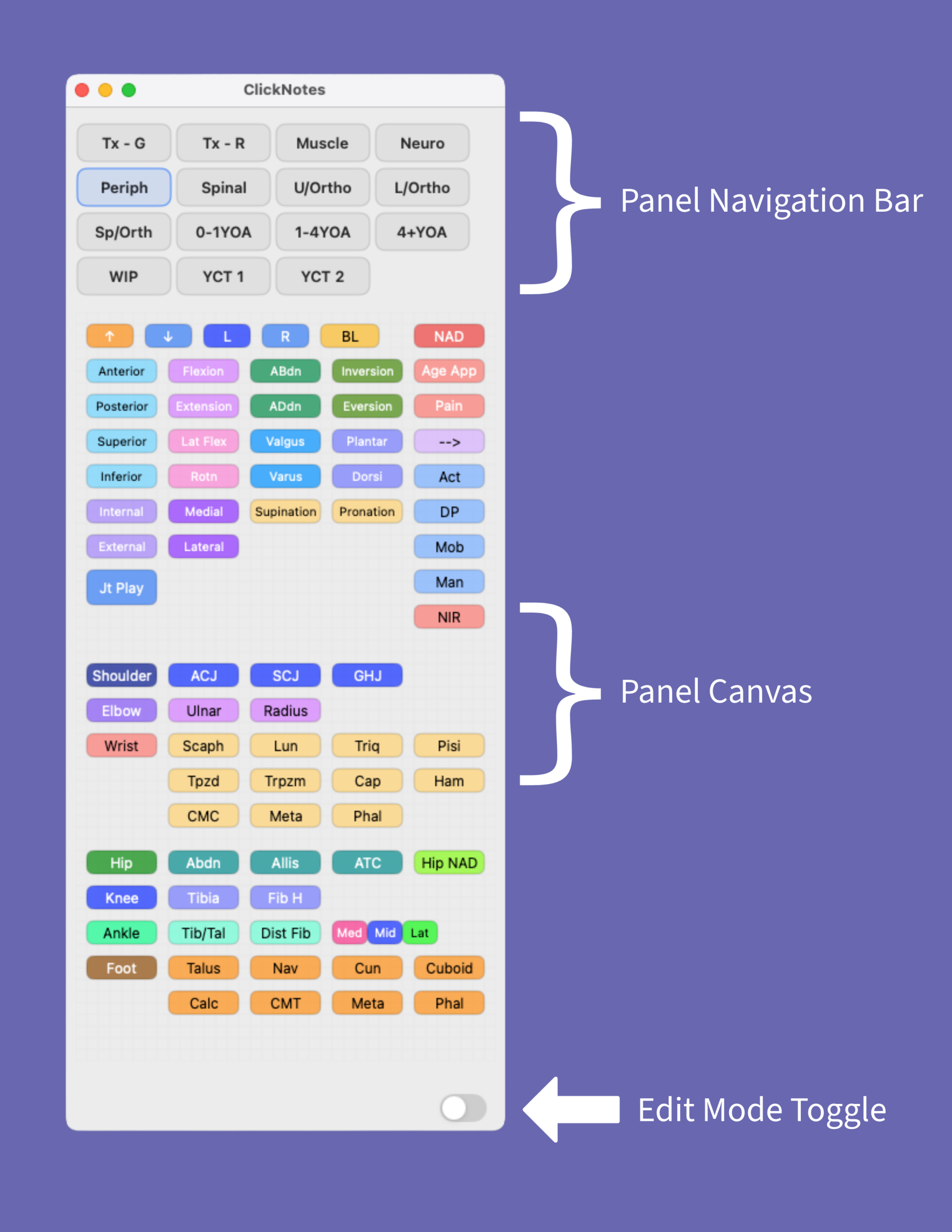
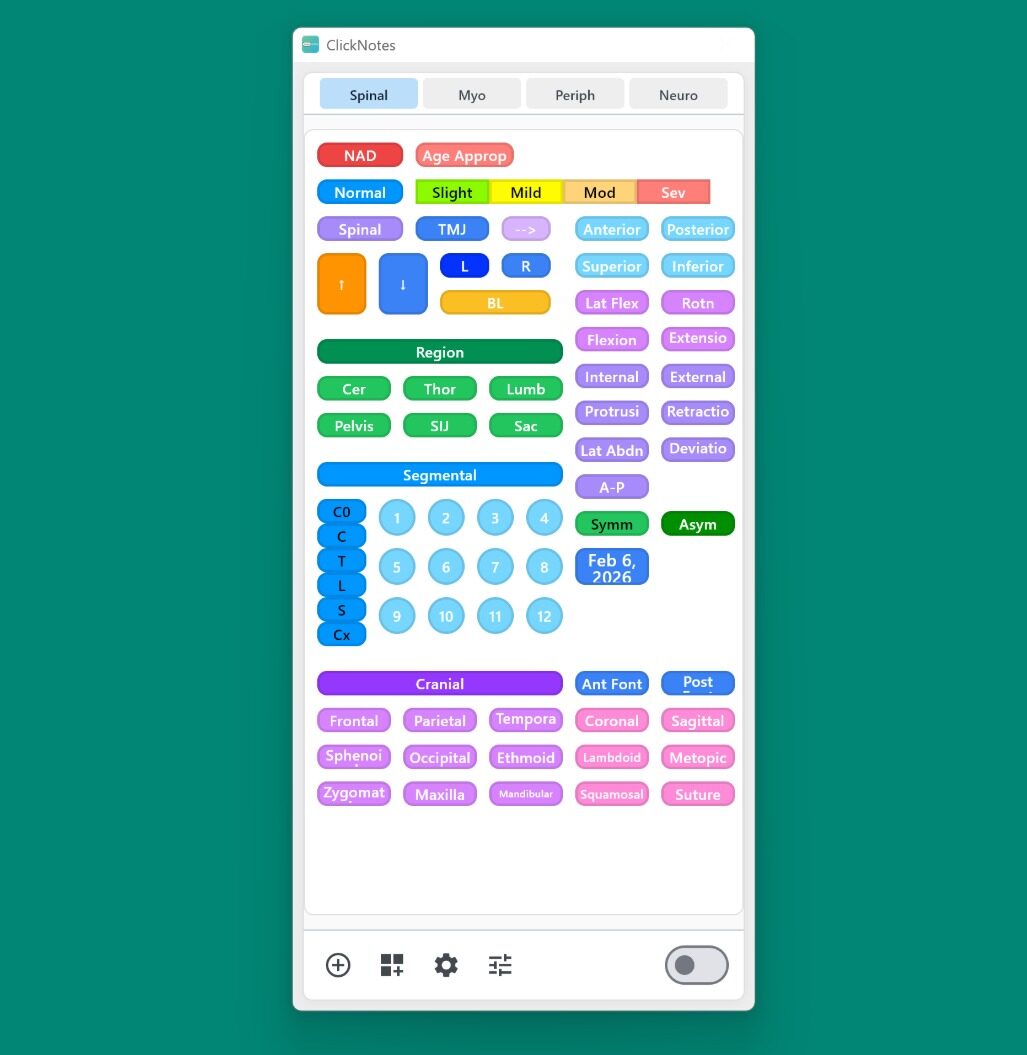
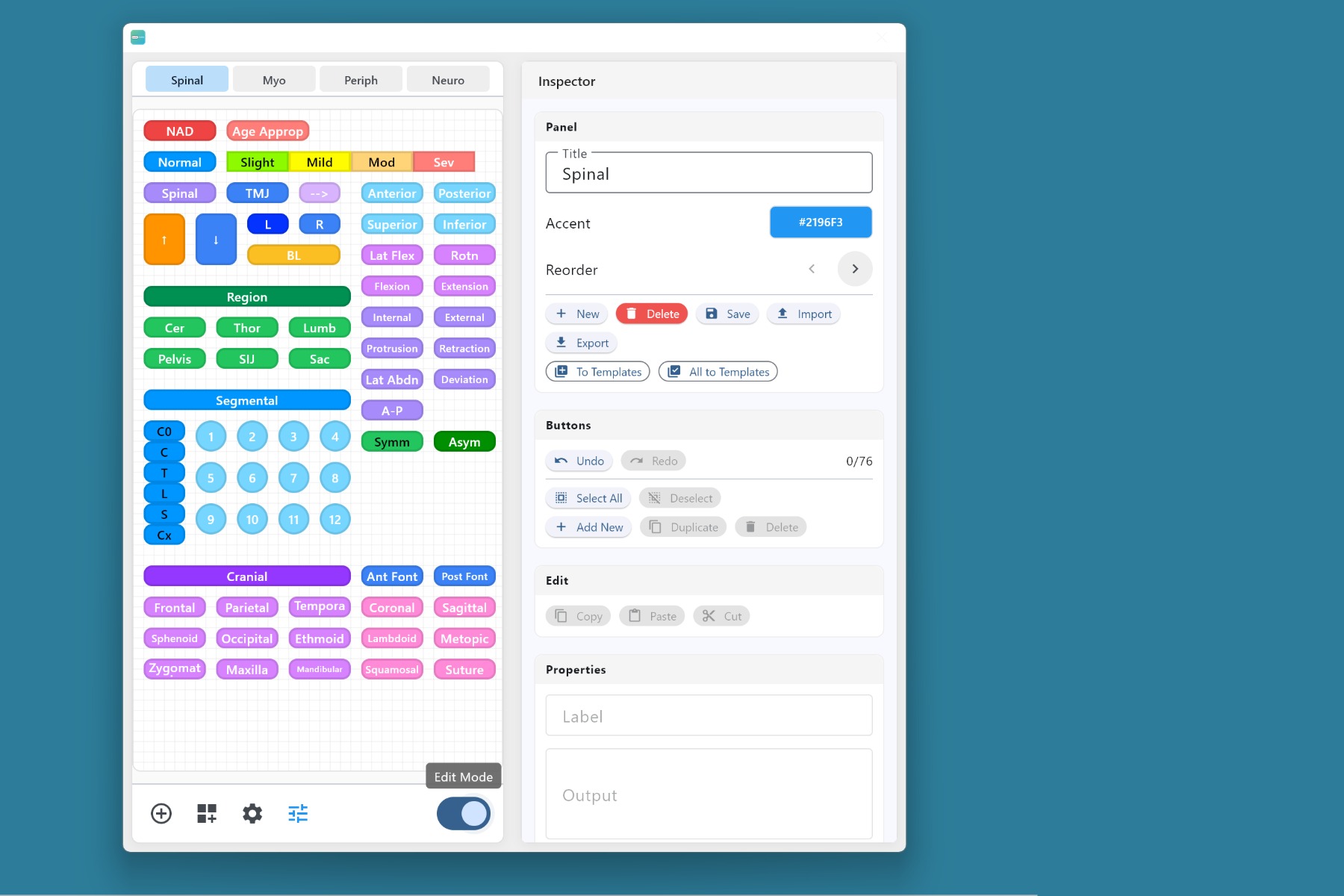
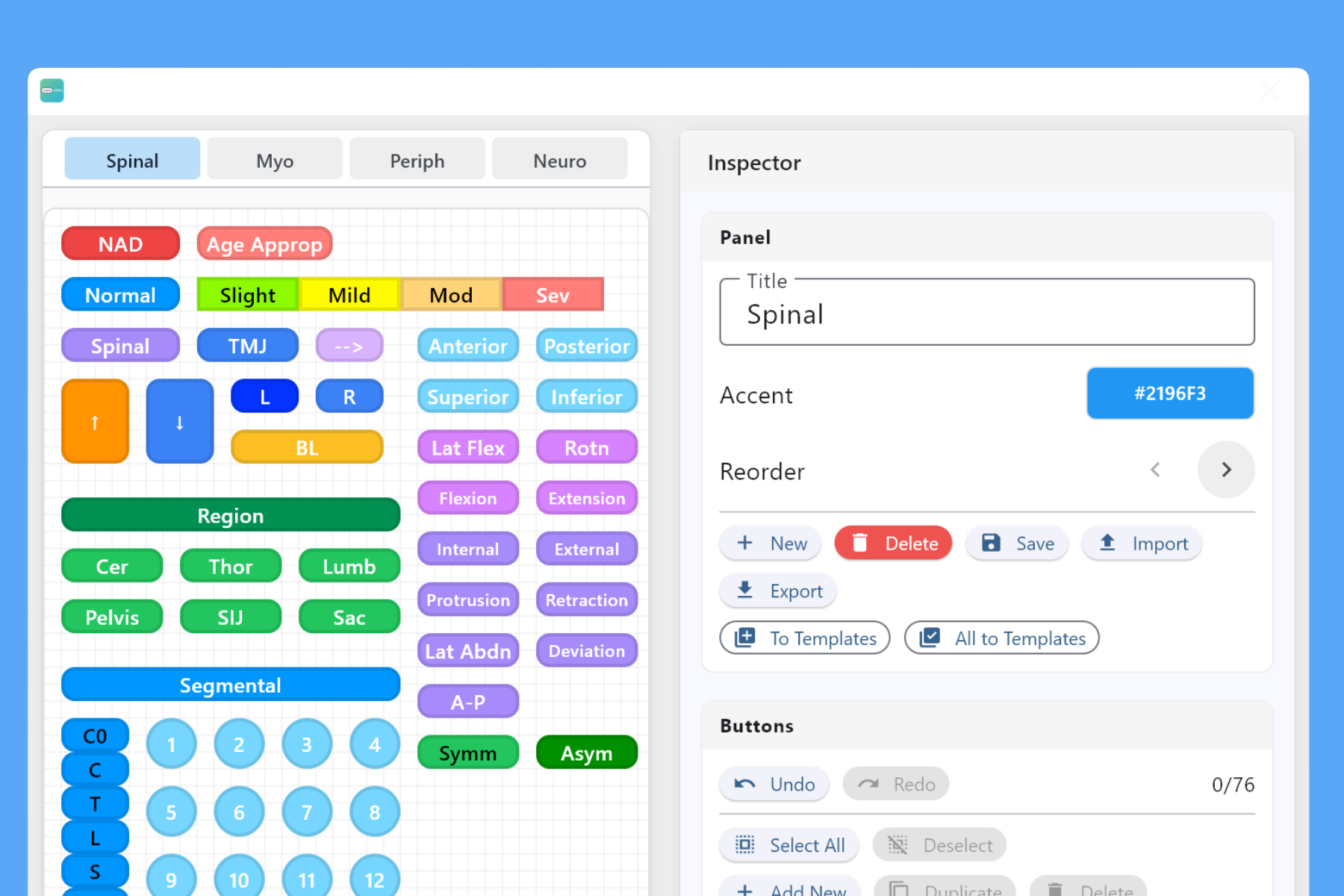
ClickNotes Main Layout Overview (macOS)
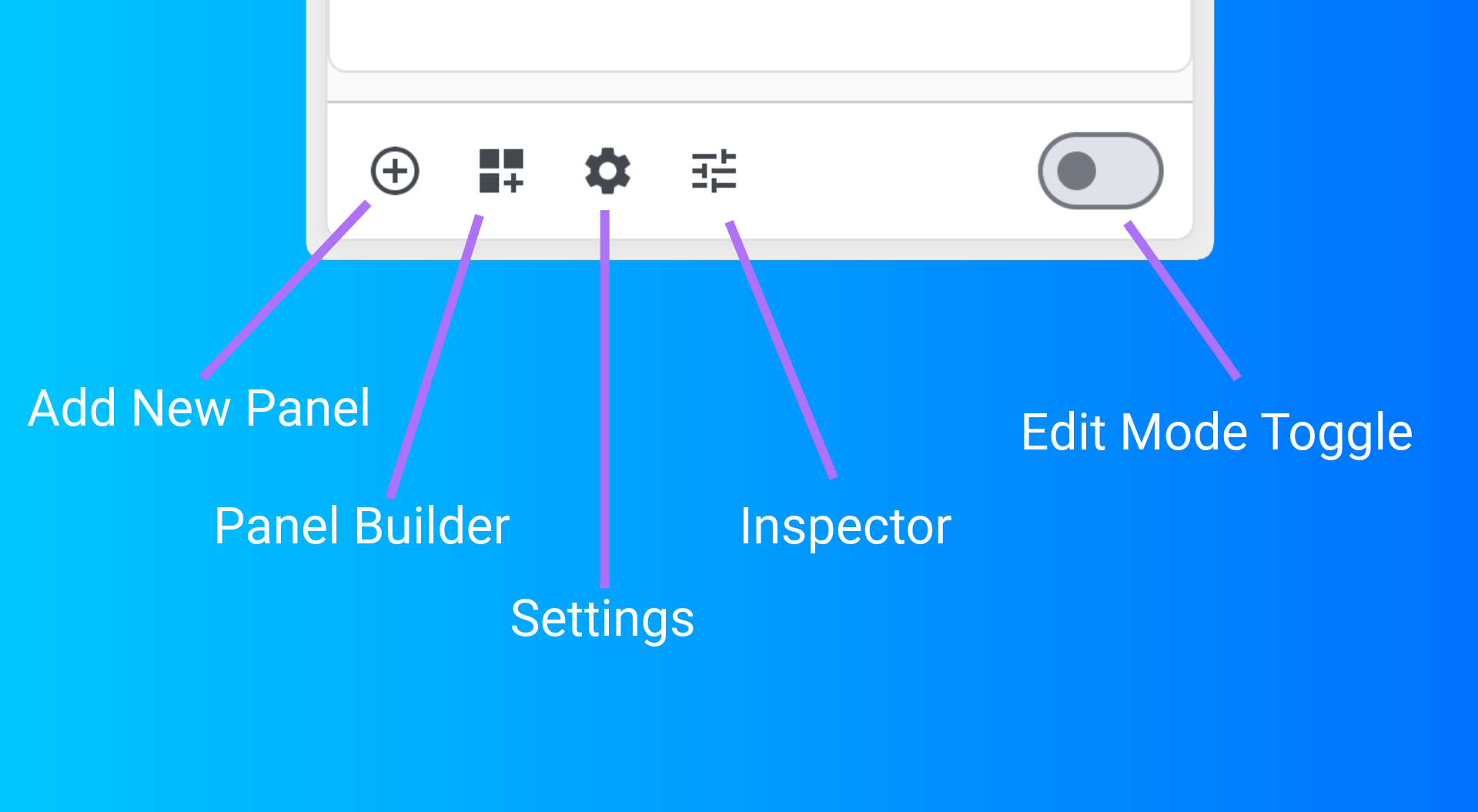
ClickNotes Main Layout Overview (Windows) ClickNotes Bottom Buttons (Windows)

Panel Navigation Bar

At the top of the window, there is the Panel Navigation Bar. Each button represents a panel, such as:

  • Treatment Notes
  • Muscle
  • Orthopaedics
  • Spinal

Or any custom panels you create — simply click a button to switch between panels.

Panel Canvas

The large main area shows the current panel as a grid of buttons. Each button has:

  • A label (what you see)
  • An output string (what is typed into your active app when you click it)

Edit Mode Toggle

A toggle switch at the bottom right lets you switch Edit Mode on and off:

Click the Edit button in the toolbar to toggle Edit Mode:

  • Edit Mode OFF: Normal use — click buttons to insert text
  • Edit Mode ON: Opens the Inspector where you can modify layout, create buttons, resize, drag and edit

Add New Panel

Click the “Add New Panel” button to quickly add a new panel to Clicknotes.

Panel Builder

Click this button to load the Panel Builder interface; a quick way to use your existing panels as templates to build panels in the way you want.

Settings

Click “Settings” to load the settings interface.

Inspector

Load the Inspector to change all aspects of your buttons; colours, sizes, shapes, labels, and output text.
Edit Mode

Shape your panels to match your workflow.

ClickNotes Main Layout Overview (Windows)

Entering Edit Mode

Click the Edit Toggle switch at the bottom right to open the Inspector Window.

Click the Edit button in the toolbar to enter Edit Mode and open the Inspector Panel.

In Edit Mode you can:

  • Move or resize buttons
  • Change colours and styling
  • Edit labels and output text
  • Duplicate or delete buttons
  • Add, re-order, rename or delete Panels

Moving Buttons

  • Click and drag a button to move it.
  • Release the mouse to snap to the underlying grid.

Resizing Buttons

  • Grip the resize handle at the corner of a button.
  • Drag to adjust the width/height.
  • Release to snap to the nearest grid size.

Adding Panels

There are two ways to add new panels:

  1. Open the Inspector, click Import Panel…, then select the panel file (.clk or .json).
  2. Drag your panel file directly onto the Panel Canvas. This also supports multiple file import.

Using ClickNotes in Daily Practice

Insert text into your notes and clinical software quickly.

Inserting Text (Mac version shown)

Inserting Text

  1. Open ClickNotes and position it conveniently on your desktop.
  2. Click in the app where you want text to appear (e.g., practice software, Notes, Word).
  3. Click the relevant button on the ClickNotes window.
  4. The output text will appear where your cursor was active.

You can combine multiple buttons to construct full notes very quickly.

Tips for Best Results

  • Keep ClickNotes visible alongside your main app
  • Use keyboard shortcuts to quickly switch focus if needed
  • Organise your most-used buttons near the top of each panel

Panel Management

Create new panels and import/export layouts.

ClickNotes Main Layout Overview (Windows)

Creating a New Panel

  1. Open the Inspector by entering Edit Mode.
  2. Choose New Panel.
  3. Give it a name (e.g., “Pregnancy Notes”, “Paediatrics”, “Admin”).
  4. Start adding buttons in Edit Mode.

Importing & Exporting Panels

Panels can easily be:

  • Exported to .clk files for backup or sharing.
  • Imported from .clk files (or converted Accessibility Keyboard layouts on Mac).

This is useful for:

  • Backing up your layouts
  • Sharing with colleagues
  • Creating a library for specific conditions or specialties

Settings

Customise ClickNotes to match your preferences.

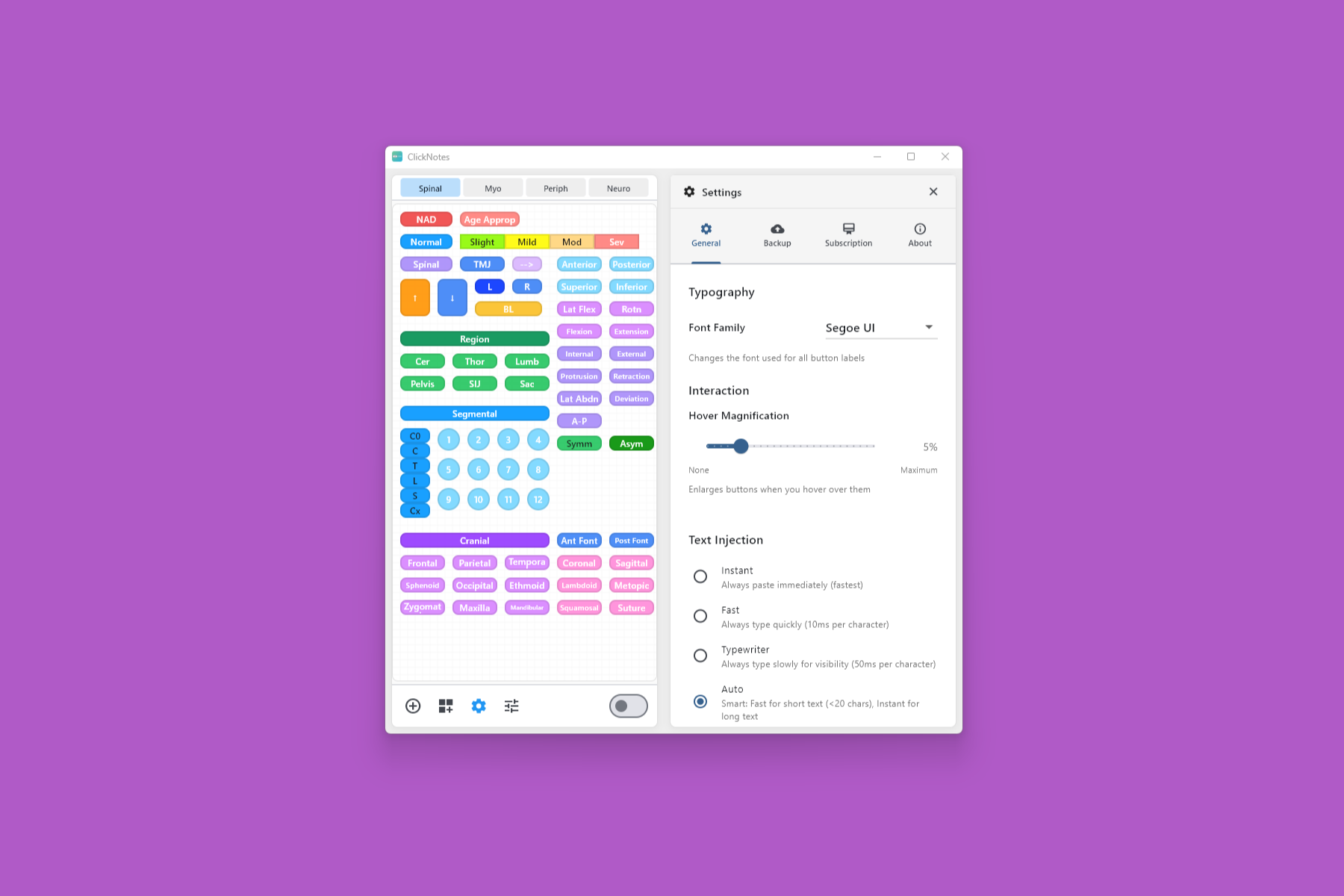
ClickNotes Settings View

In the settings you can customise specific functions of ClickNotes:

  • Hover Zoom: Create a zoom effect on mouse-over to highlight the focused button
  • Text Speed: Change text insertion speed from Typewriter to Instant, or Automatic (different behaviour for strings over/under 100 characters)

Accessing Settings

Click ClickNotes in the menu bar and select Settings… (or press + ,)

Click the Settings icon (gear) at the bottom left of the Main Window.

Backup and Sharing

Keep your panels safe and move them between computers.

ClickNotes stores panel information locally on your device. You can:

  • Export panel files manually to a location you choose
  • Import panels into ClickNotes on another computer

Cloud Backup Options

Include your ClickNotes data folder in your iCloud, Dropbox, OneDrive, or Time Machine backups. Future versions aim to include syncing panels across multiple devices.

Include your ClickNotes data folder in your OneDrive, Dropbox, Google Drive, or Windows Backup.

Sharing Between Computers

Export your panels as .clk files and import them on your other machine — panels are fully cross-platform compatible!

The Panel Builder

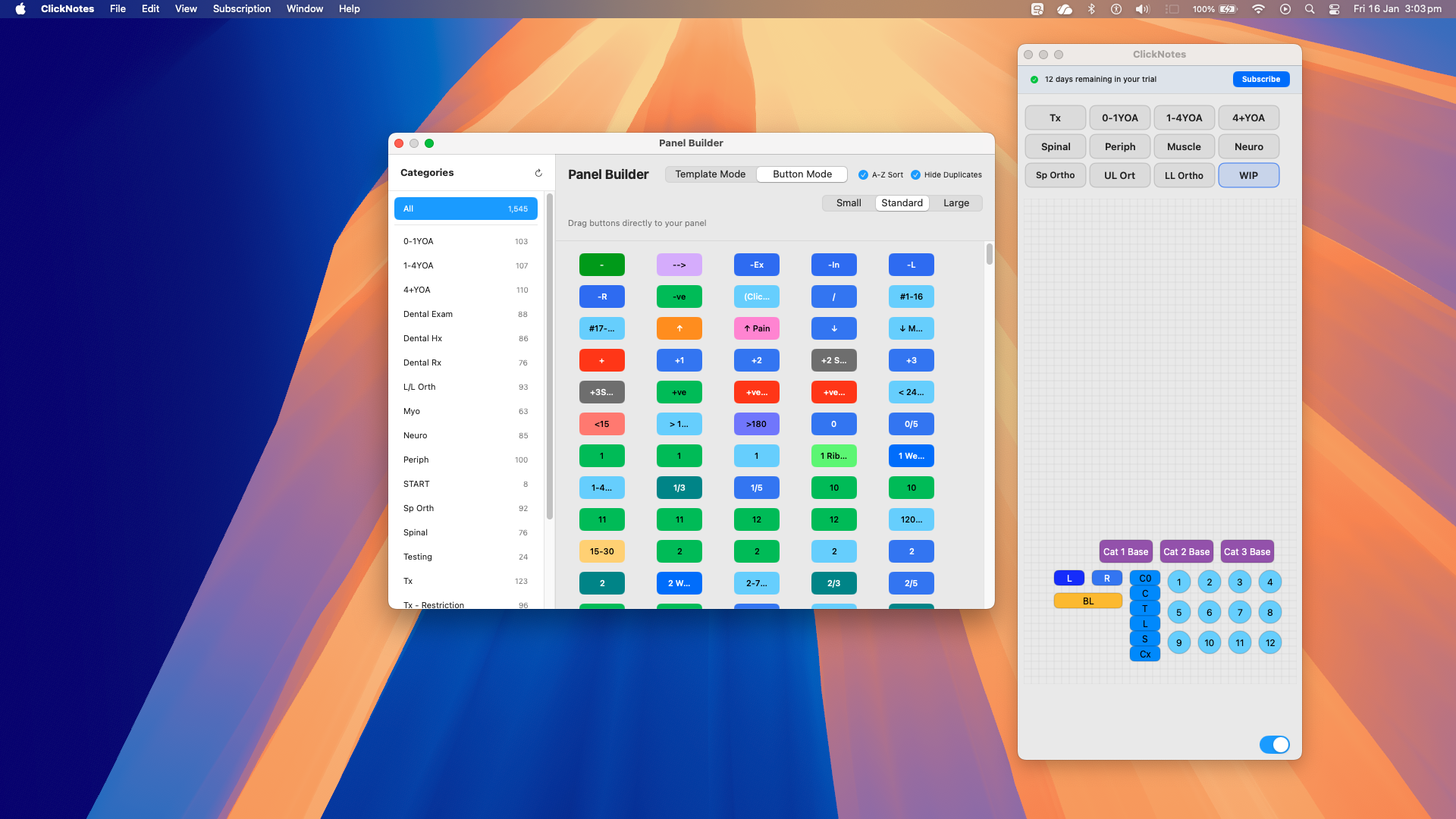
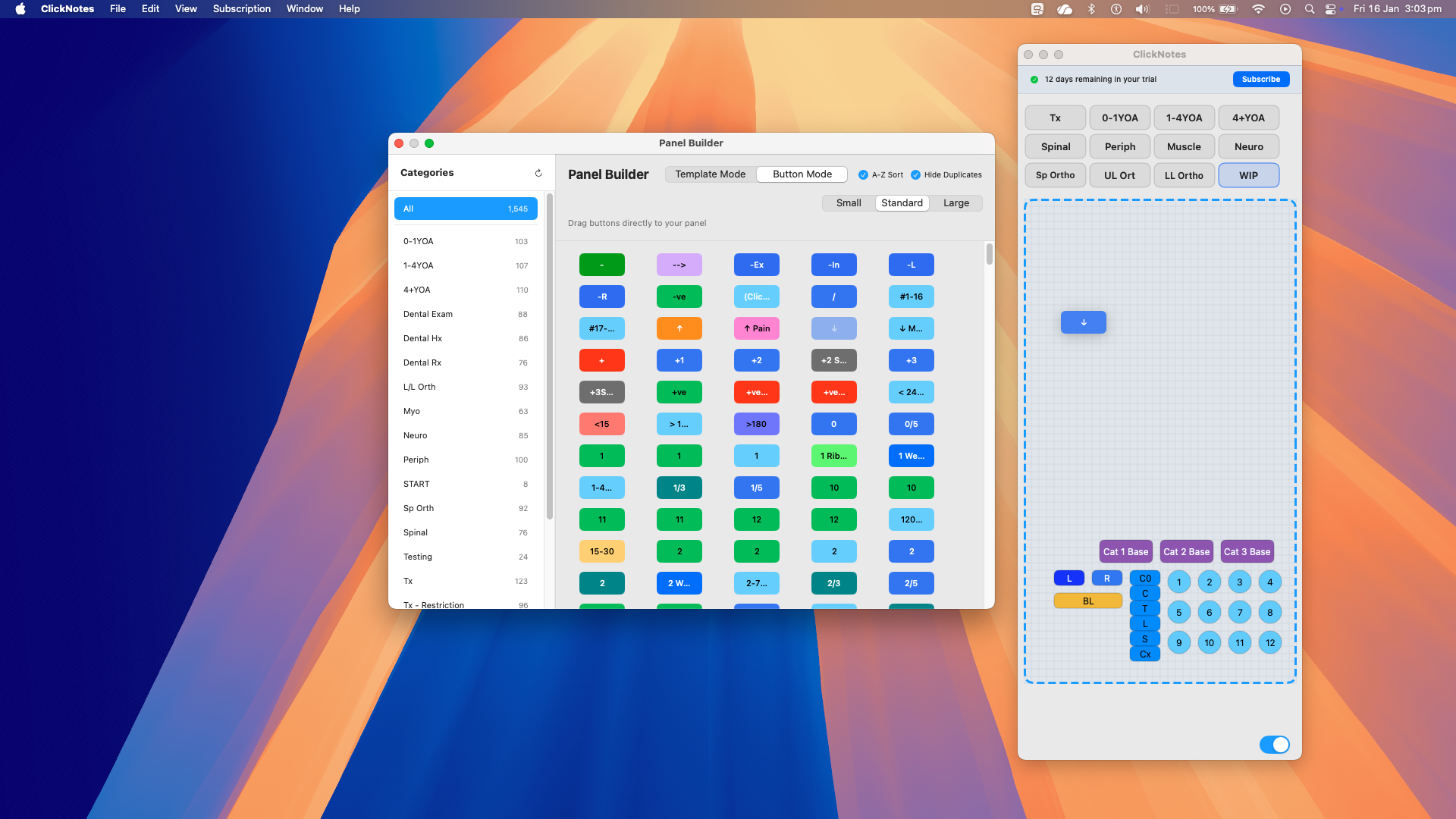
Build panels using your existing buttons or install templates for quick panel construction. Version 1.3.1 for MacOS shown.

Opening Panel Builder

Access the Panel Builder from the Help MenuPanel Builder.

Template Library

Populate your template library in two ways:

  1. Add your own panels via File → Save Current/Save All Panels as Template. This saves button data including colour, label and output string.
  2. Import pre-made templates from the online Panel Library by dragging the template onto the Panel Builder.

Using the Builder

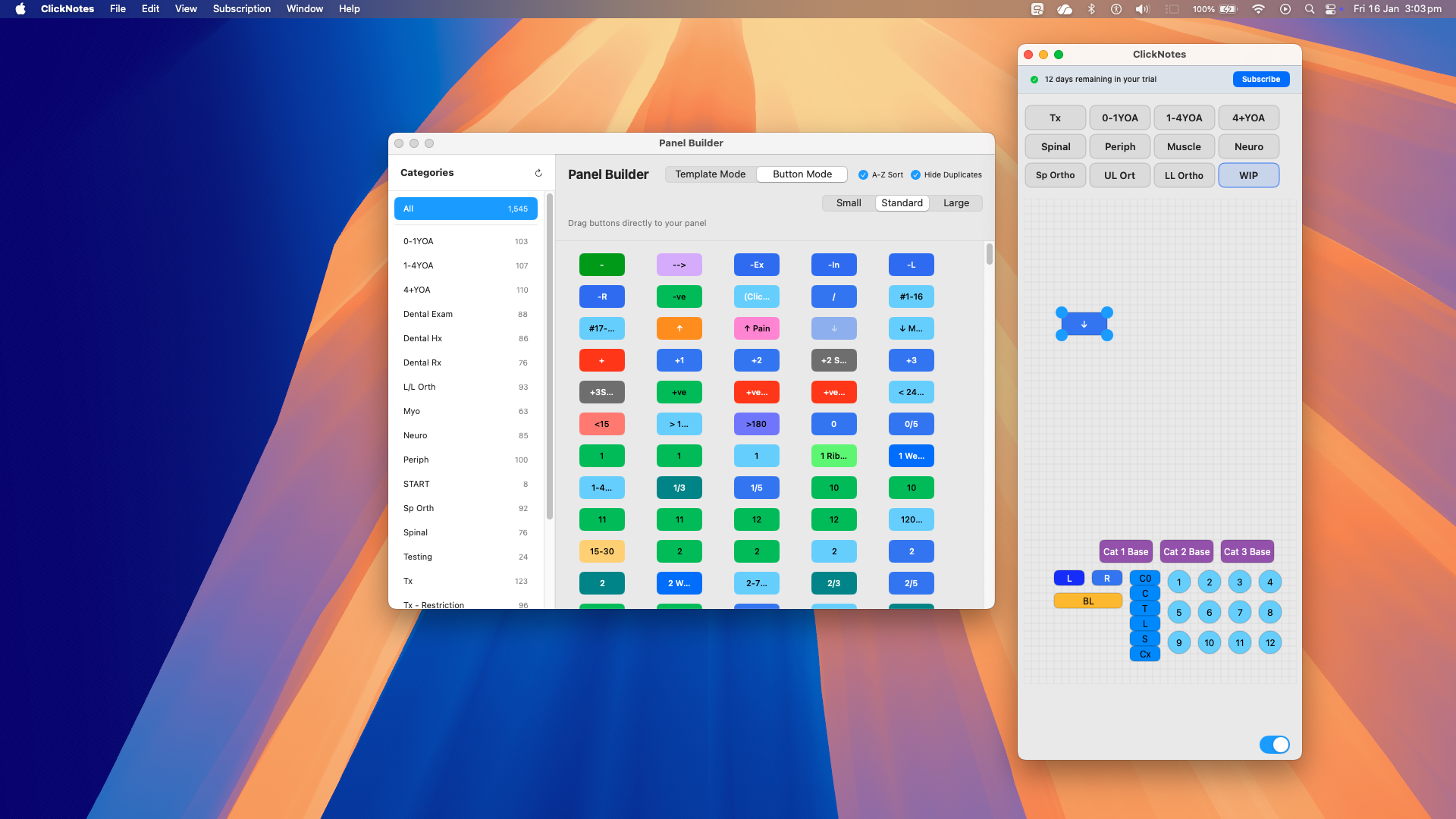
Drag buttons from the Panel Builder onto your canvas! Position and arrange them to create your ideal workflow.

Use Template View to see a preview of the output text string.

Customisation

Edit any button after adding it to the canvas. Modify labels, output text, colours, and sizing through the Edit Panel.

Troubleshooting

Common issues and how to fix them

Text isn’t appearing in other apps (macOS)

This is usually a permissions issue. Check your macOS Accessibility settings:

  1. Open System Settings → Privacy & Security → Accessibility
  2. Find ClickNotes in the list and ensure it’s toggled ON
  3. If it’s already on, try removing it and re-adding it
  4. Restart ClickNotes after changing permissions

Text isn’t appearing in other apps (Windows)

Try these steps to resolve text insertion issues:

  • Ensure the target application’s window is active and has focus
  • Make sure your cursor is in a text field
  • Try running ClickNotes as Administrator (right-click → Run as administrator)
  • Check if antivirus software is blocking ClickNotes

Text appears in the wrong place

Make sure your cursor is active in a text field before clicking a ClickNotes button. Click inside the text area of your target app first, then click the button in ClickNotes. The text will be inserted wherever your cursor was last active.

Buttons or panels are missing

If your panels or buttons have disappeared:

  • Check if the correct panel is selected in the navigation bar
  • Restart ClickNotes to refresh the panel data
  • Re-import your panel backups if you have them (.clk files)

ClickNotes won’t open (macOS)

If macOS blocks the app from opening, right-click on ClickNotes.app and select Open. You may need to confirm by clicking “Open” in the security dialog. This only needs to be done once.

Windows SmartScreen blocks the installer

This is normal for new applications. Click More info on the SmartScreen dialog, then click Run anyway. ClickNotes is safe to install — SmartScreen warnings appear because the app is new and building reputation with Microsoft.

My subscription isn’t being recognised

Make sure you’re using the same license key on all devices. Check your email for the license key sent after purchase. If you’re still having issues, contact support@clicknotes.app with your order details.

Still need help?

We’re here to help! Contact us at support@clicknotes.app or visit our Support page.

Scroll to Top